
Identifying an Item's Unit THC
Overview
When conducting a transaction involving an infused product within Metrc, the item's "unit THC" is utilized to ascertain the milligrams of THC on the receipt. The unit THC is generated in the manufacturing license where the item was created. Determining this for wholesale products can sometimes be difficult.
Please follow the instructions below to permanently add the unit THC column to your Metrc packages screen.
Step 1 — Add the Unit THC Column to Your Packages Screen
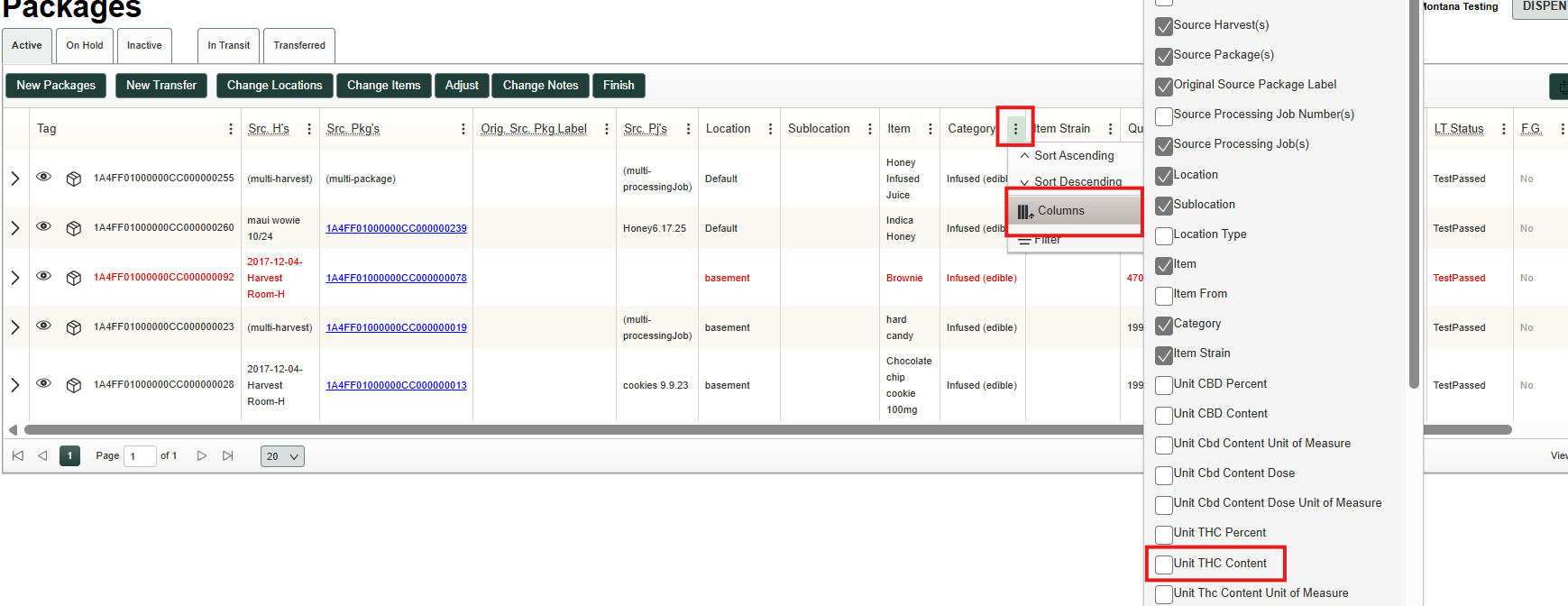
Navigate to your Packages Screen, then select the 3 vertical dots at the top of any column, hover over the column’s selection, and check the unit THC Content box.
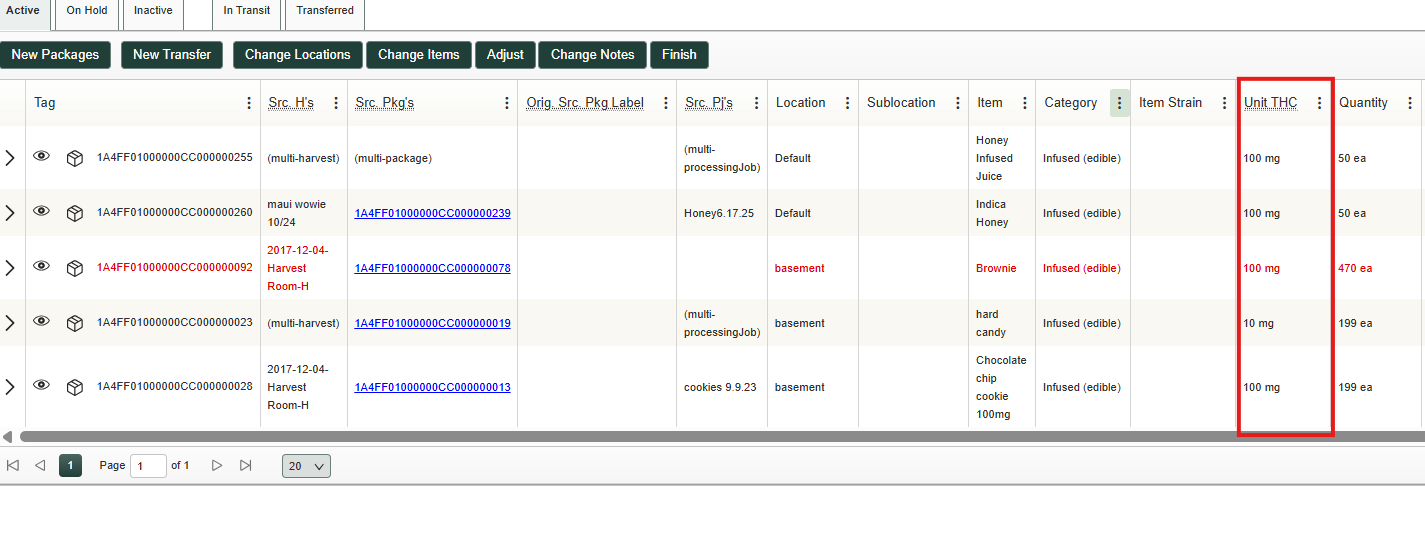
This will populate the unit THC column. This will show the active unit THC for each item in inventory.
Step 2 — Save the Column Setting
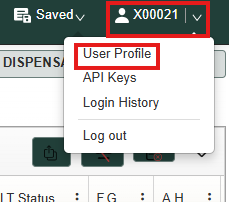
To save this setting, navigate to the top right of your window and select your User Profile.
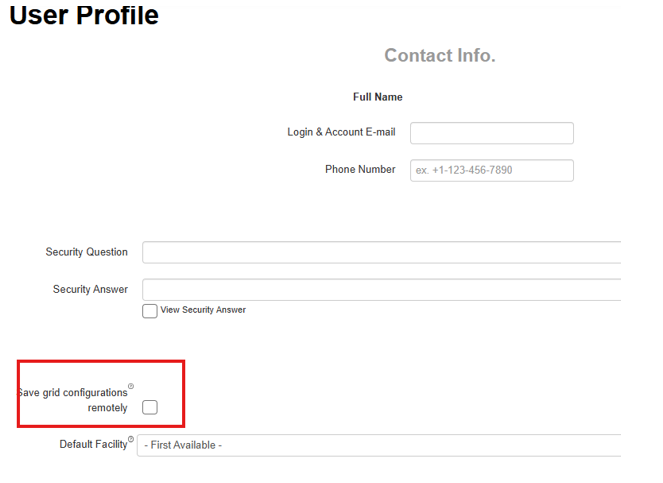
In the user profile, check the box that says, Save grid configurations remotely.